Protocol Builder
The Protocol Builder is a form-based editor for TabSINT protocols that runs in your web browser. Instead of writing protocol.json by hand, you fill in fields, add pages, and pick response areas and the Builder produces a valid protocol package you can load straight onto a tablet.
What is the Protocol Builder?
The Builder edits the same protocol.json file described throughout this guide. It is a different way of writing that file, not a different format. Every change you make is reflected immediately in the generated JSON, so it doubles as a way to learn the protocol schema, adjust a field, and watch which JSON key changes.
Everything runs locally in your browser. Nothing is uploaded, there is no account to create, and your protocol never leaves your machine.
When to use the Builder
- Drafting a new protocol, especially your first few.
- Learning what a field does or what a response area expects.
- Checking a protocol against the TabSINT schema without loading it onto a tablet.
When to use a text editor instead
- Bulk or repetitive edits. Find-and-replace across fifty pages is faster in an editor.
- Features the form does not expose (see Limitations).
- Anything already working that just needs a small tweak.
The two mix freely. A common workflow is to draft in the Builder, download, then finish by hand.
The Interface
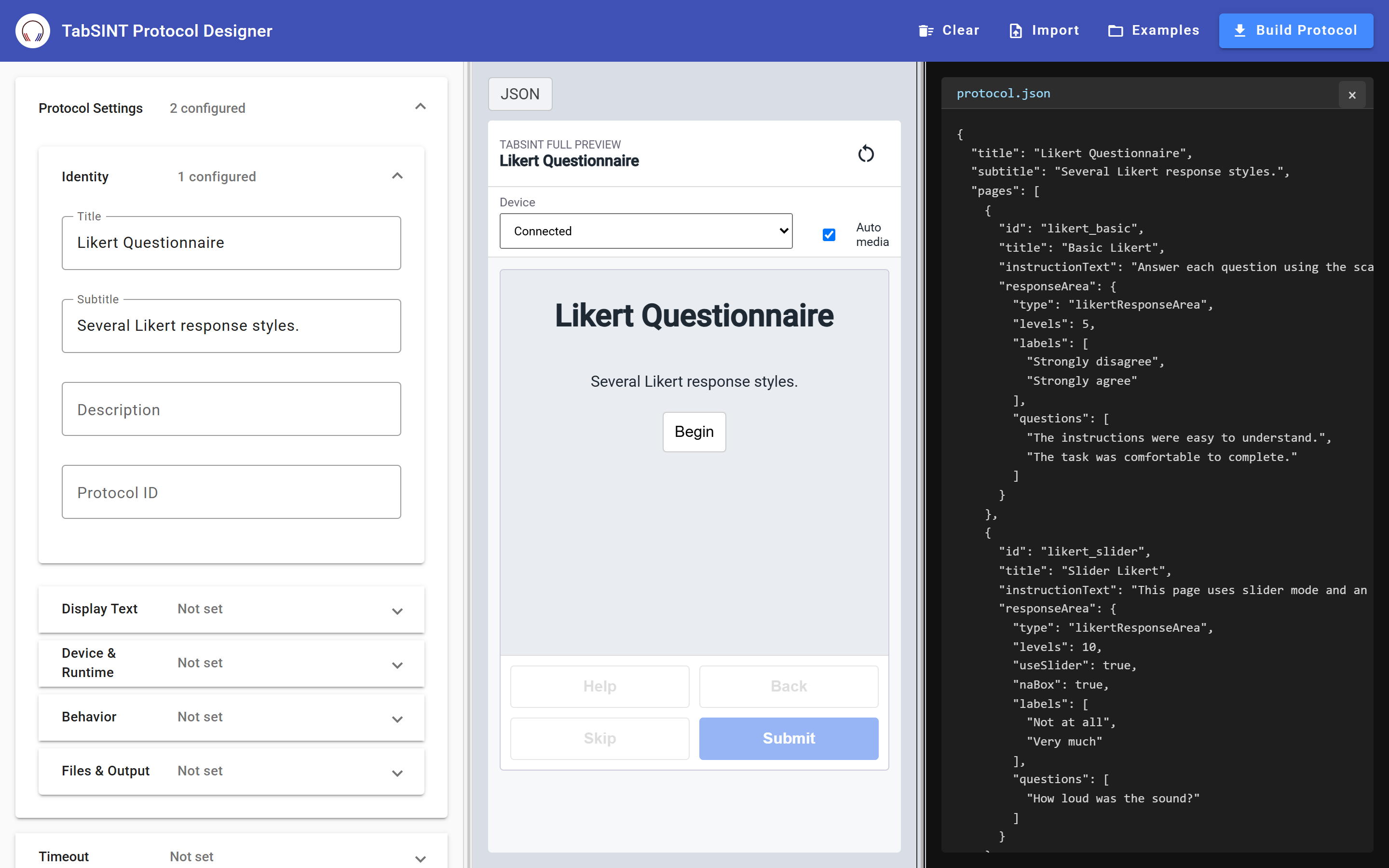
The Builder fills the browser window and is split into resizable panes. Drag the dividers between them to give whichever pane you are working in more room.
Protocol Settings
The left pane holds the protocol itself, organised into collapsible sections:
- Identity — protocol ID, title, subtitle
- Display Text — instruction, help, and submit text
- Device & Runtime, Behavior, Files & Output — runtime options such as randomization, progress bar, back button, result filename
- Timeout, Calibration, Nav Menu — optional protocol-level blocks
- Pages — the body of the protocol
- Sub-Protocols — nested protocols, as described under Subprotocols
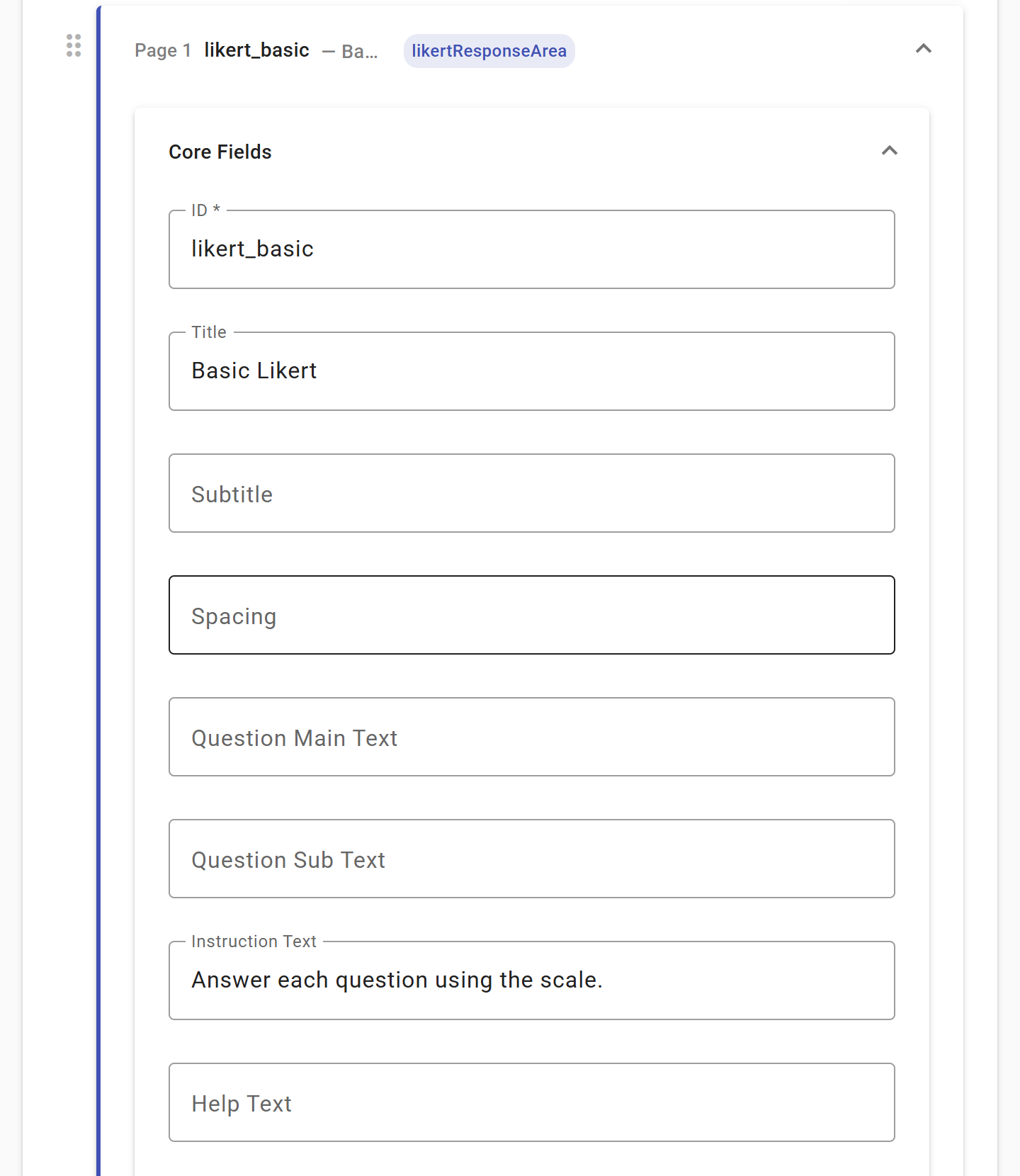
Under Pages, each page expands to its own card with its text fields and an Add Content Block menu for the optional parts of a page: Repeat Page, Image, Video, Response Area, Wav Files, CHA Wav Files, Nav Menu, Follow-Ons, and Set Flags. Adding a block reveals a dedicated editor for it.
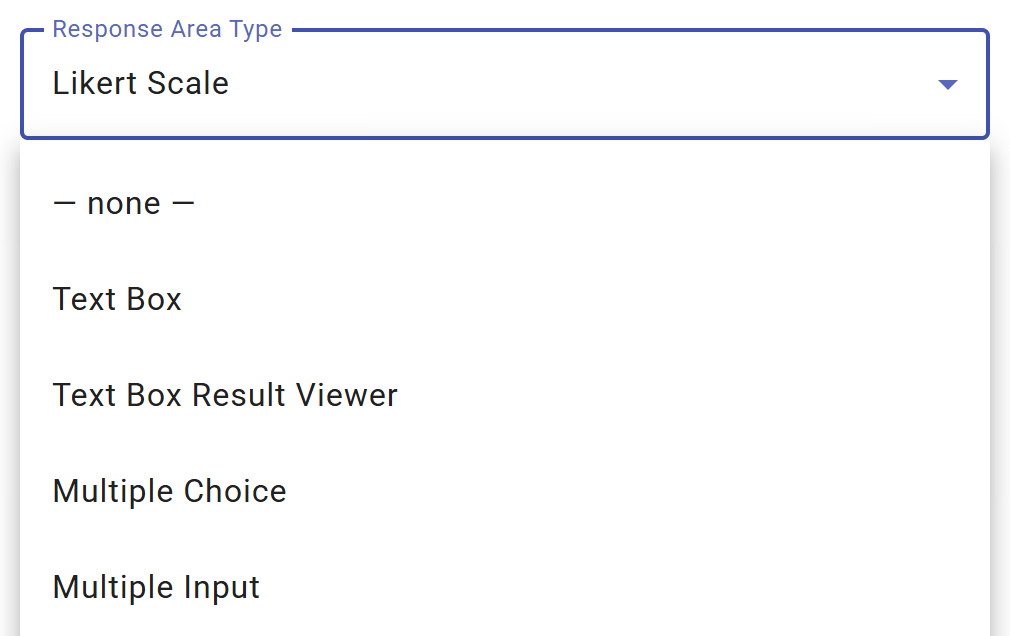
The Response Area block is where you choose what the participant actually does on that page. Selecting a type swaps in a form tailored to it with choices for Multiple Choice, an input list for Multiple Input, levels and labels for Likert, and so on. See Response Areas for what each type does.
Preview
The center panel renders the current page roughly as it would appear on the tablet, and updates the view as you type. For pages driven by hardware, it provides mock controls so you can step through the flow without a headset attached. This is useful for checking that branching, follow-ons, and flags behave the way you intended.
The preview is an approximation for authoring purposes. Always run the real protocol on a tablet before relying on it.
JSON
Click the JSON button at the top of the preview to open a third panel showing the generated protocol.json live. Focus a field on the left and the corresponding location in the JSON is highlighted, which makes it easy to connect a form control to the key it writes. Close it with the ×.
Building a Protocol
- Fill in the fields under Identity and Display Text.
- Expand Pages and add a page. Give it an
id. Every page needs one. - Add a Response Area content block and choose a type.
- Repeat for each page, using the preview to check the flow.
- Click Build Protocol to download the result.
Media and the Exported Package
Fields that refer to a file (page images, videos, wav files, and JavaScript) let you pick a file from your computer. The Builder records the path in the protocol and keeps the file alongside the protocol.json file.
Build Protocol downloads a single protocol-package.zip containing:
protocol.json— formatted with two-space indentation, with empty and unset fields stripped out- every file you attached, at its protocol-relative path (
assets/images/…,assets/audio/…,assets/videos/…,assets/js/…)
Unzip it and you have a protocol folder ready to load, whether via Device Storage or a GitLab repository.
Validation
The Builder validates continuously against the TabSINT protocol schema, the same schema the tablet applies when you enable Validate protocols. This checks structure and types, not just JSON syntax, so it catches far more than a general-purpose JSON linter.
When something is wrong, a validation counter appears in the toolbar. Expand it to see each problem listed against the JSON path where it occurs, so you can go straight to the field that caused it.

Validation errors do not prevent you from downloading. An incomplete draft can be exported and picked up later. They do mean the protocol is not ready for a tablet, so clear them before running an exam.
As a final check, keep Validate protocols enabled on the Protocols Tab when you first load a new protocol onto a device.
Starting From an Example
The Examples menu loads a working protocol you can inspect and adapt. These are the same protocols TabSINT itself ships, so anything you see in one is known to run on a device:
- TabSINT Example Protocol — surveys, forms, branching and subprotocols, with no hearing device required
- Tympan Example Protocol — the Tympan device exams: calibration, DPOAE, WAI and MRT
- WAHTS Example Protocol — the WAHTS and CHA exams, including audiometry, HINT, gap detection and the three digit test
- Purdue Study Protocol — a full research study assembled from subprotocols, a useful model for a large multi-part protocol
Loading an example replaces whatever is currently open, so export your work first.
Reading an example alongside the JSON pane is the quickest way to see how features such as follow-ons, flags, and subprotocols are expressed. See Advanced Protocols for what those features do, and Example Protocols for further worked examples.
Editing an Existing Protocol
Import loads an existing protocol.json from your computer into the form, so the Builder works on protocols you already have, however they were written. Select the protocol.json file itself, not the containing folder or a zip.
Media files are not carried in through import. The protocol keeps the media paths, but you will need to re-attach the files if you want them included in a rebuilt package.
Clear empties the current protocol and any attached files, after asking for confirmation.
Limitations
Your work is not saved. The Builder keeps everything in browser memory only. Reloading the page, closing the tab, or navigating away loses the protocol. Click Build Protocol early and often. The downloaded package is your save file, and Import loads it back.
Not every response area is available. The picker covers the ten most commonly used types: Text Box, Text Box Result Viewer, Multiple Choice, Multiple Input, Likert Scale, Calibration Exam, Manual Audiometry, Swept DPOAE, WAI, and MRT. TabSINT supports more than twice that many, including the WAHTS-specific areas. To use one the Builder does not offer, add it by hand after exporting.
The preview is an approximation. It is a drafting aid, not an emulator. Behaviour on a real tablet is what counts.
See Also
- Protocols — what a protocol is and how
protocol.jsonis structured - Response Areas — the full catalog of response area types
- Advanced Protocols — branching, flags, repeats, and custom expressions
- Data Interface — getting a finished protocol onto a tablet