(add title)
M-Plug

The M-Plug is a multifunction plug that serves as an ear plug, a dosimeter, a probe for OAE evalutions and even Audiometry evalutions. The M-Plug includes the plug and a charging case. The case uses a micro USB charger. The M-Plug uses custom made replaceable foam ear tips produced by the comply foam company, product number CTOz-4000. Reach out to tabsint@creare.com if needing help to order.
Basic Operation
The M-Plug has an internal rechargeable lithium-nickel coin battery that must be charged before use. Place the M-Plug in the charging case making sure the five charging prongs align. Plug the micro USB charger into a charging source. The LED lights on the M-Plug should illuminate while charging.
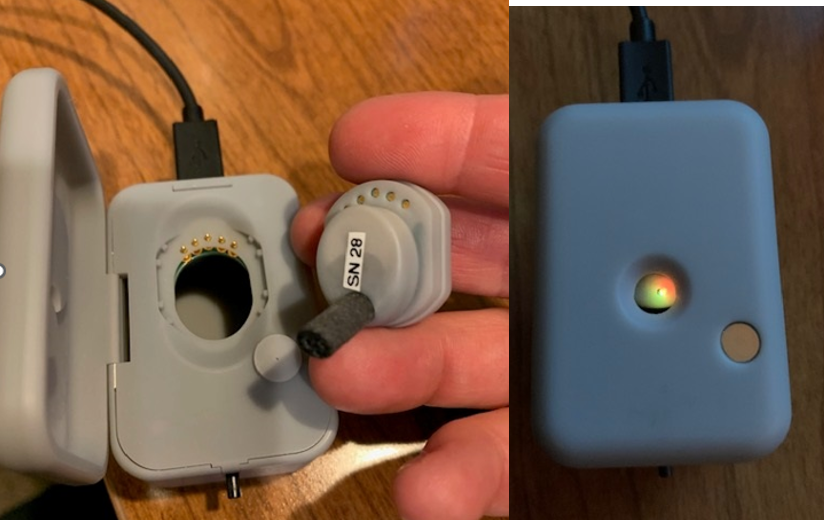
To power the M-Plug ON it must be in the charging case. Place the M-Plug in the case aligning the five prongs. Press the black button until the LED lights illuminate. The M-Plug can now be removed from the case for use.
To power the M-Plug OFF it must be in the charging case. Place the M-Plug in the case aligning the five prongs. Press and hold the black button until the LED lights go off.
Connecting M-Plug to TabSINT
Note: The M-Plug is currently using the TabSINT structure that has been set up for the WAHTS. M-Plug information will be displayed in areas designated for the WAHTS. Not all features are compatable and this discrepancy will be called out below.
The M-Plug communicates over Bluetooth Low Energy (also known as Bluetooth Smart, or Version 4.0+).
If you haven't yet installed TabSINT, return to the TabSINT Quick Start portion of this document.
- Enter the Admin View of TabSINT
- Under the Setup tab, scroll down to the WAHTS section
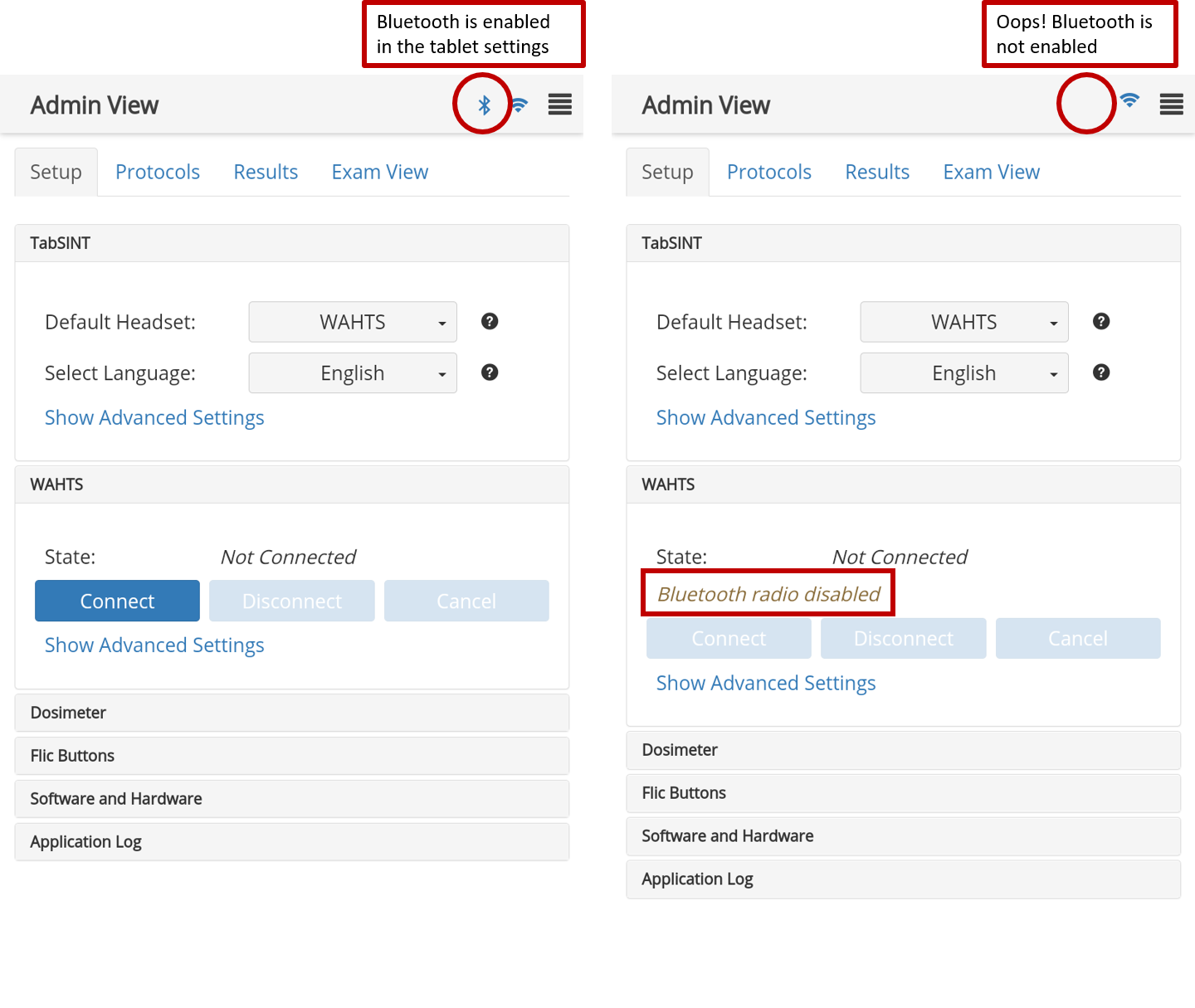
- Make sure the tablet Bluetooth is turned on, or you will see the message "Bluetooth radio disabled"
- Make sure the M-Plug is turned on with LED lights flashing
- Select the Connect button
- The first time that you connect a M-Plug after installing TabSINT, you will see an alert asking you to allow TabSINT access to the device's location. You must select Allow. The device's location will NOT be recorded unless the parameter
Record Test Locationin the TabSINT section of the Admin View is turned on.
- The first time that you connect a M-Plug after installing TabSINT, you will see an alert asking you to allow TabSINT access to the device's location. You must select Allow. The device's location will NOT be recorded unless the parameter
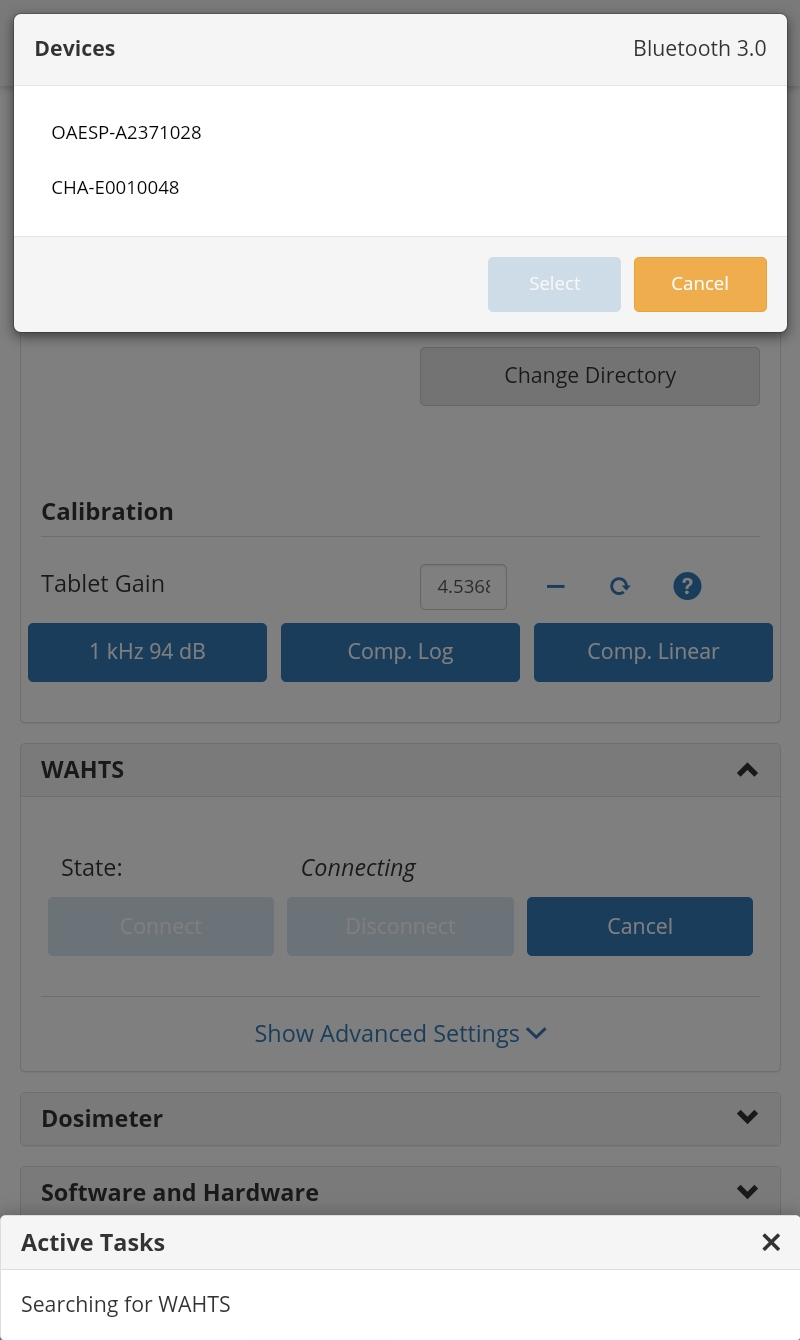
- A pop-up will appear with the Bluetooth Devices that are active and in range
- Select the serial number of the M-Plug you wish to connect
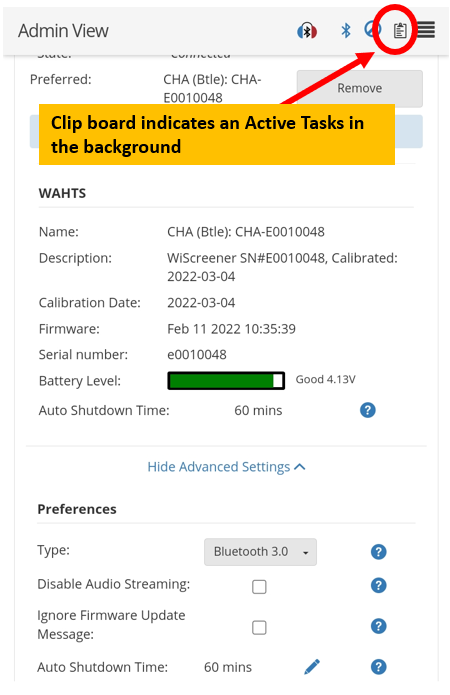
- Once connected a Headset with Bluetooth icon will appear in the upper bar and an additional WAHTS panel will appear. This panel identifies the Name or serial number, the Description the Calibration Date, the Firmware installed, the Battery Level of the connected device, and the Auto Shutdown Time. Note the M-Plug does not currently populate the Calibration Date field. Note the Auto Shutdown Time for the M-Plug is displayed here but it may not currently be edited inConfiguration section. Changing the Auto Shutdown Time in that preferences module is for the WAHTS and will not adjust the time on the M-Plug.
Clicking on the Headset with Bluetooth icon in the upper bar at any time will display the same information.

Updating M-Plug Firmware
M-Plug's firmware cannot currently be updated using TabSINT. The firmware noted in TabSINT's Firmware module and the firmware noted for the M-Plug in the WAHTS module may be different. This device is currently only used for research and development with specific clients, consult your Creare contact if needing confirmation regarding the appropriate firmware to use and how to update.
Active Tasks
- When a device is connecting, or there are other Active Tasks, a task bar will show at the bottom of the page.
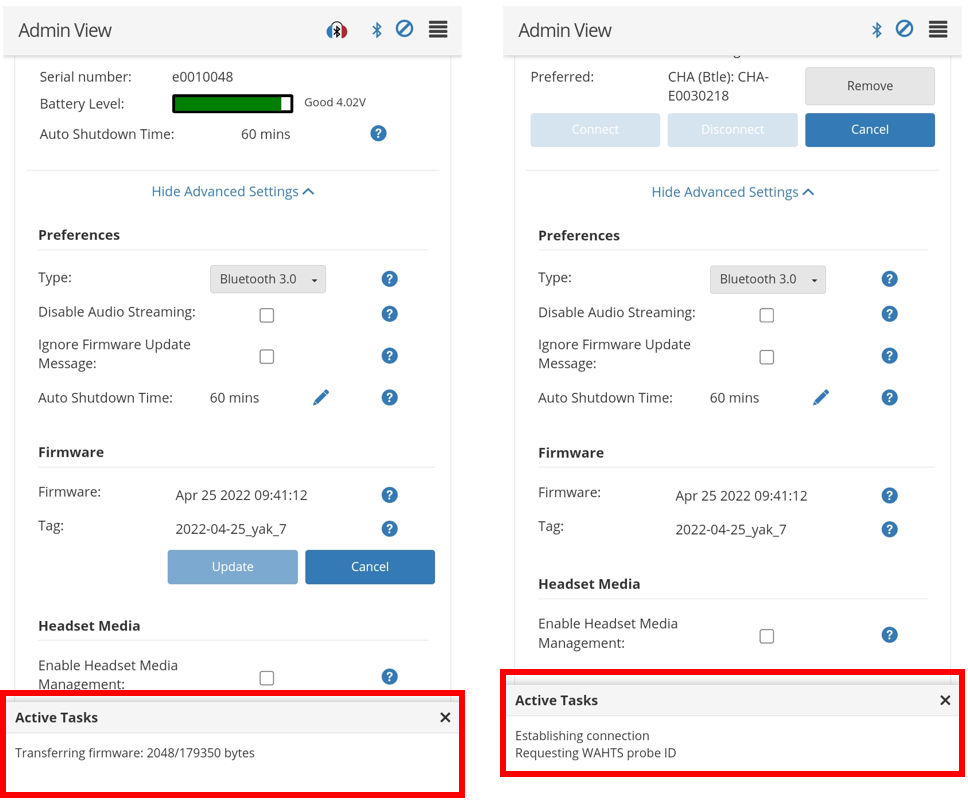
- If the Active Tasks notification is closed but still active, a clip board will appear at the top of the page. Tap on the clip board to see status of any tasks. Once the tasks is complete the clip board will go away.