
Ampla Quick Start Guide
Ampla
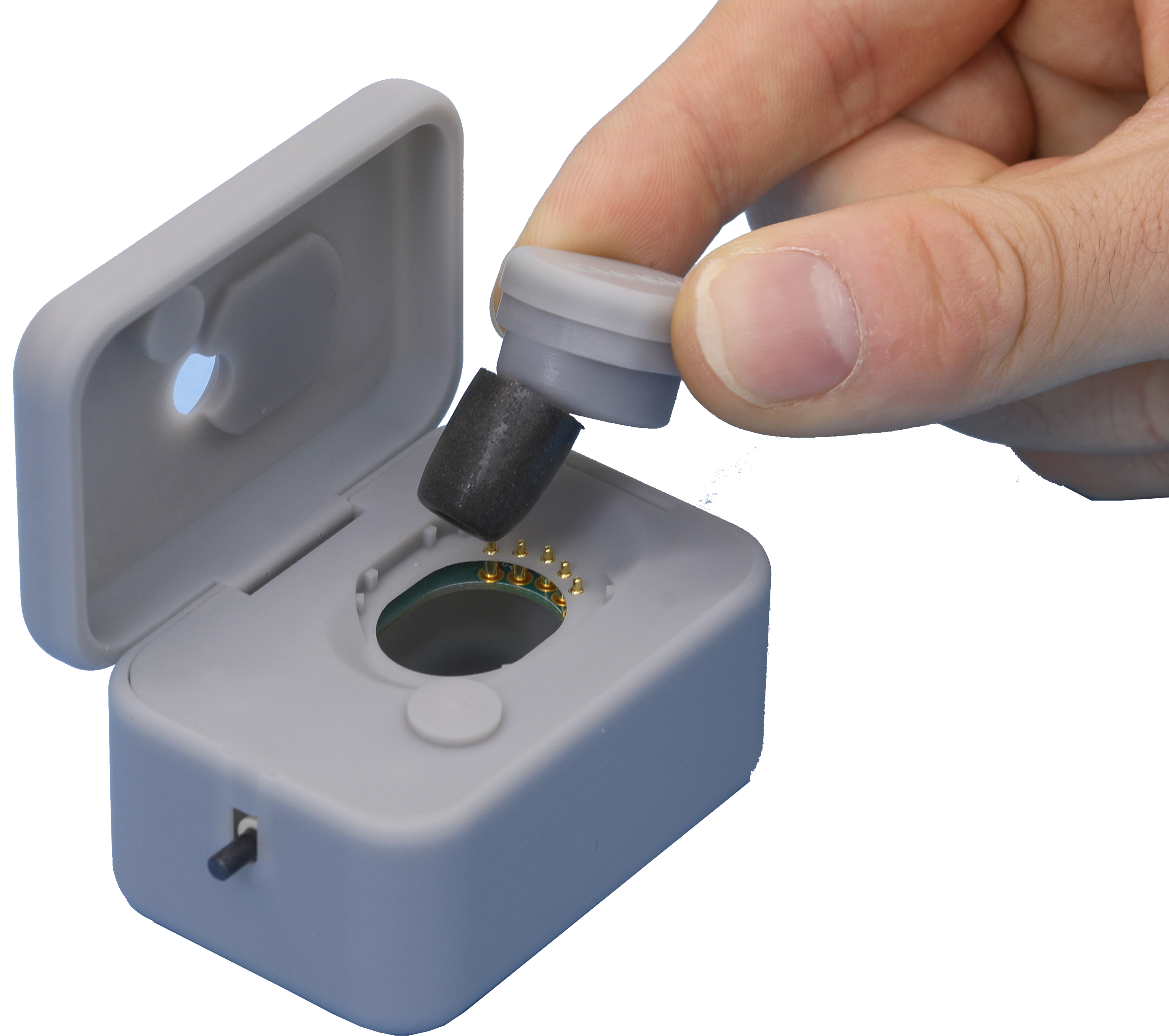
The Ampla is a multifunction plug that serves as an ear plug, a dosimeter, a probe for OAE evalutions and even Audiometry evalutions. The Ampla includes the plug and a charging case. The case uses a micro USB charger. The Ampla uses custom made replaceable foam ear tips produced by the comply foam company, product number CTOz-4000. Reach out to tabsint@creare.com if needing help to order.
Basic Operation
The Ampla has an internal rechargeable lithium-nickel coin battery that must be charged before use. Place the Ampla in the charging case making sure the five charging prongs align. Plug the micro USB charger into a charging source. The LED lights on the Ampla should illuminate while charging.
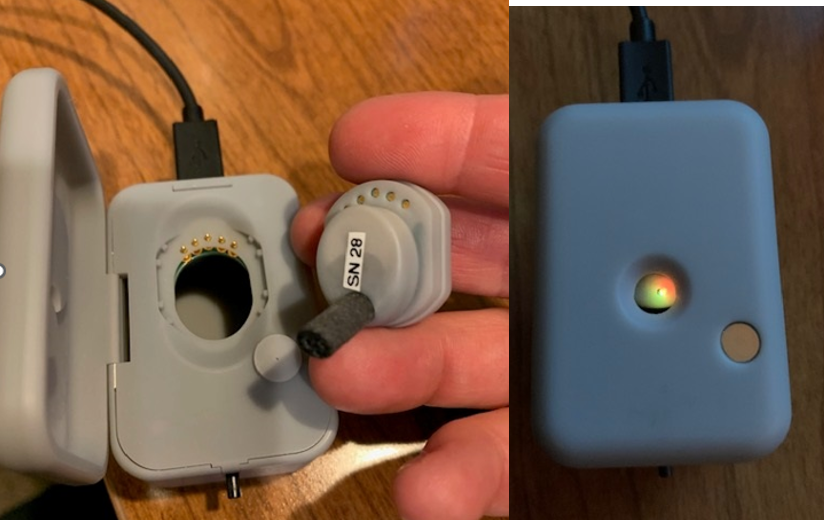
To power the Ampla ON it must be in the charging case. Place the Ampla in the case aligning the five prongs. Press the black button until the LED lights illuminate. The Ampla can now be removed from the case for use.
To power the Ampla OFF it must be in the charging case. Place the Ampla in the case aligning the five prongs. Press and hold the black button until the LED lights go off.
Connecting Ampla to TabSINT
Note: The Ampla is currently using the TabSINT structure that has been set up for the WAHTS. Ampla information will be displayed in areas designated for the WAHTS. Not all features are compatable and this discrepancy will be called out below.
The Ampla communicates over Bluetooth Low Energy (also known as Bluetooth Smart, or Version 4.0+).
If you haven't yet installed TabSINT, return to the TabSINT Quick Start portion of this document.
- Enter the Admin View of TabSINT
- Under the Setup tab, scroll down to the WAHTS section
- Make sure the tablet Bluetooth is turned on, or you will see the message "Bluetooth radio disabled"
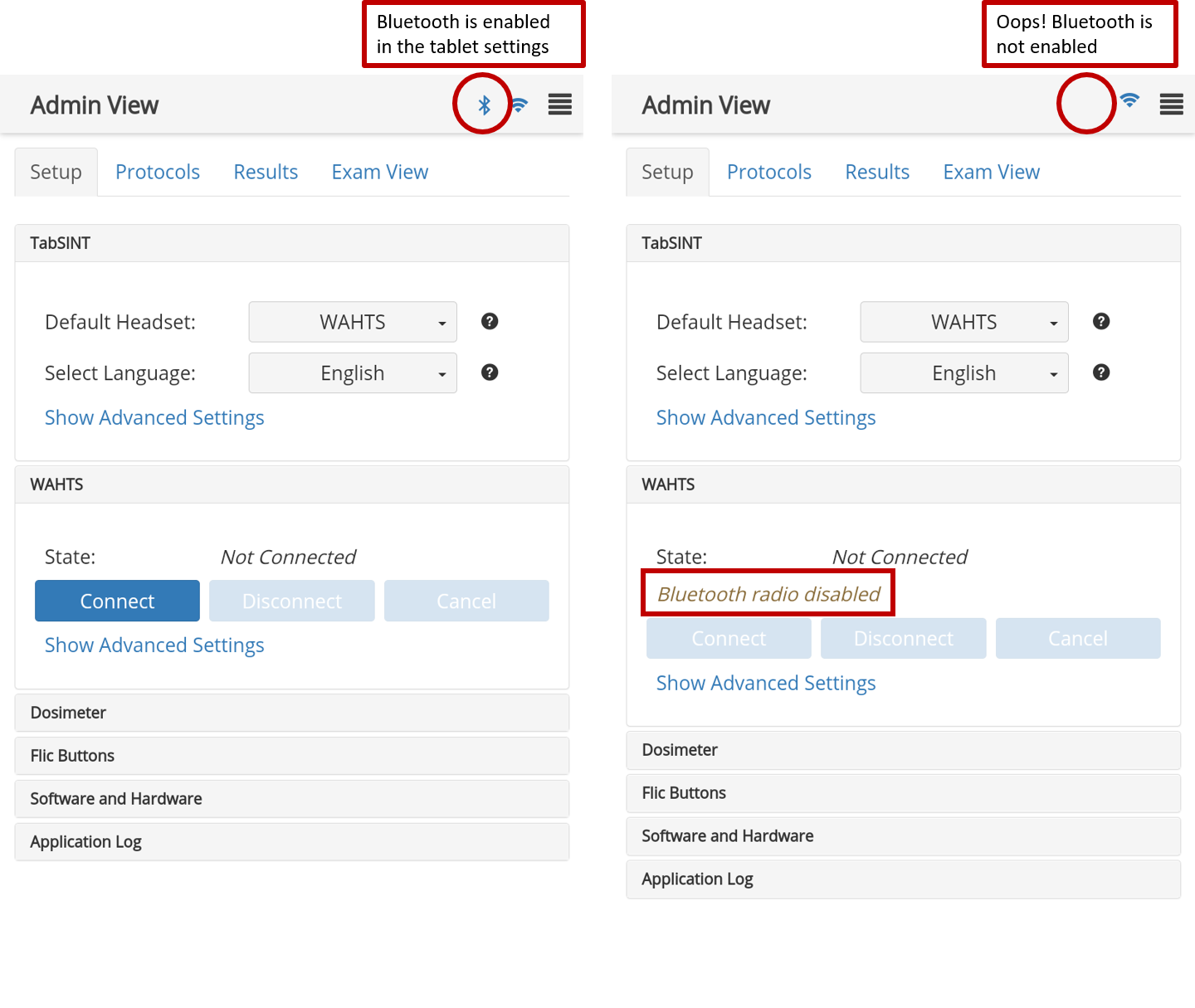
- Make sure the Ampla is turned on with LED lights flashing
- Select the Connect button
- The first time that you connect a Ampla after installing TabSINT, you will see an alert asking you to allow TabSINT access to the device's location. You must select Allow. The device's location will NOT be recorded unless the parameter
Record Test Locationin the TabSINT section of the Admin View is turned on.
- The first time that you connect a Ampla after installing TabSINT, you will see an alert asking you to allow TabSINT access to the device's location. You must select Allow. The device's location will NOT be recorded unless the parameter
- A pop-up will appear with the Bluetooth Devices that are active and in range
- Select the serial number of the Ampla you wish to connect
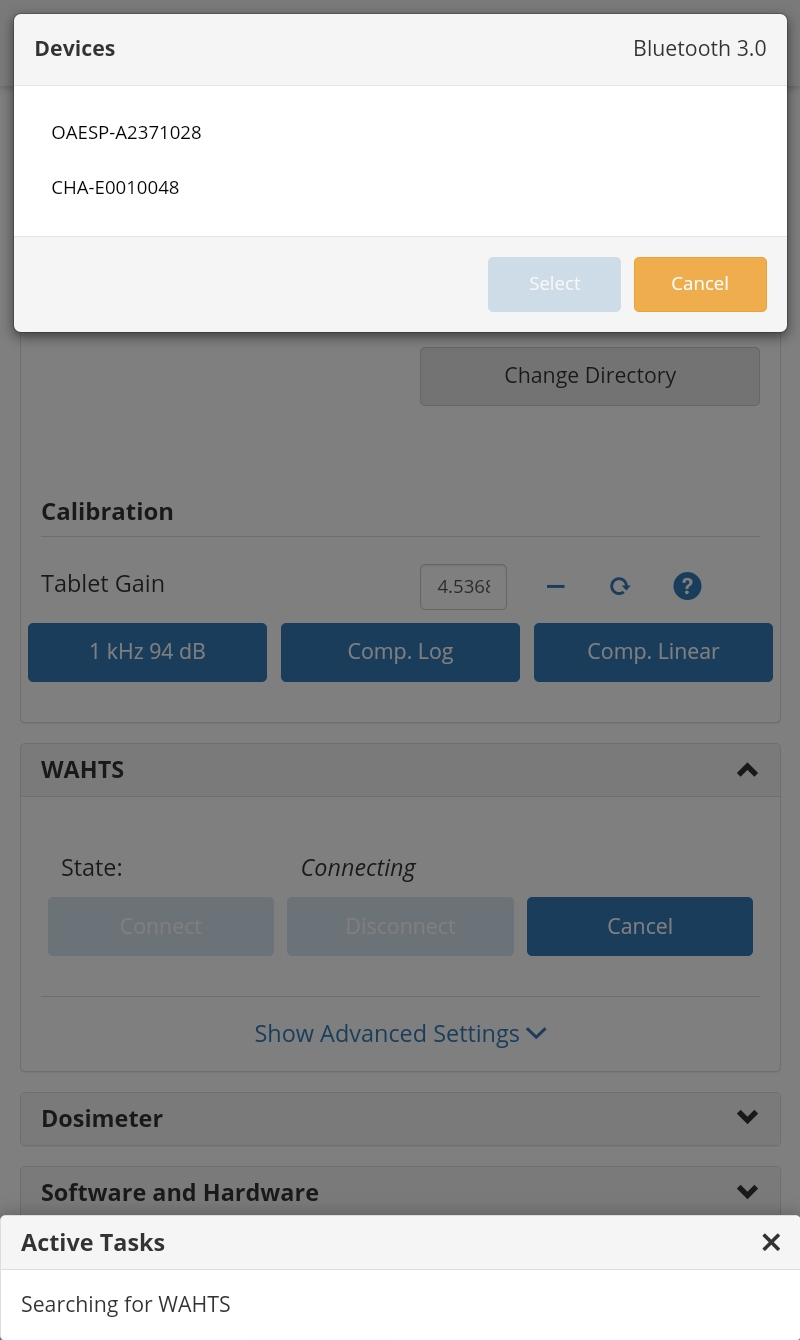
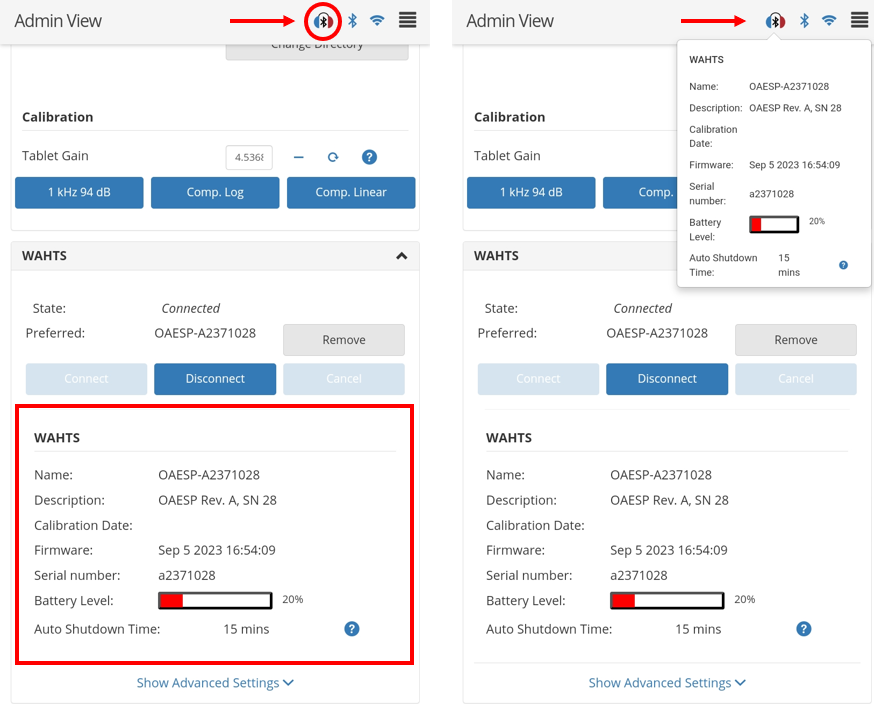
- Once connected a Headset with Bluetooth icon will appear in the upper bar and an additional WAHTS panel will appear. This panel identifies the Name or serial number, the Description the Calibration Date, the Firmware installed, the Battery Level of the connected device, and the Auto Shutdown Time. Note the Ampla does not currently populate the Calibration Date field. Note the Auto Shutdown Time for the Ampla is displayed here but it may not currently be edited in the Configuration section. Changing the Auto Shutdown Time in that preferences module is for the WAHTS and will not adjust the time on the Ampla.
Clicking on the Headset with Bluetooth icon in the upper bar at any time will display the same information.
Updating Ampla Firmware
Ampla's firmware cannot currently be updated using TabSINT. The firmware noted in TabSINT's Firmware module and the firmware noted for the Ampla in the WAHTS module may be different. This device is currently only used for research and development with specific clients, consult your Creare contact if needing confirmation regarding the appropriate firmware to use and how to update.